Delete a Table in BigQuery
We can delete a table in BigQuery using either the Google Cloud Console (UI method) or by running a SQL command.
Method 1: Delete Table Using BigQuery UI
Step 1: Go to the BigQuery page here in the Google Cloud Console.
Step 2: In the Explorer panel, expand your project, select a dataset, and then select the table that you want to delete.
Step 3: Click on the vertical three dots (⋮) next to the table name and choose Delete.
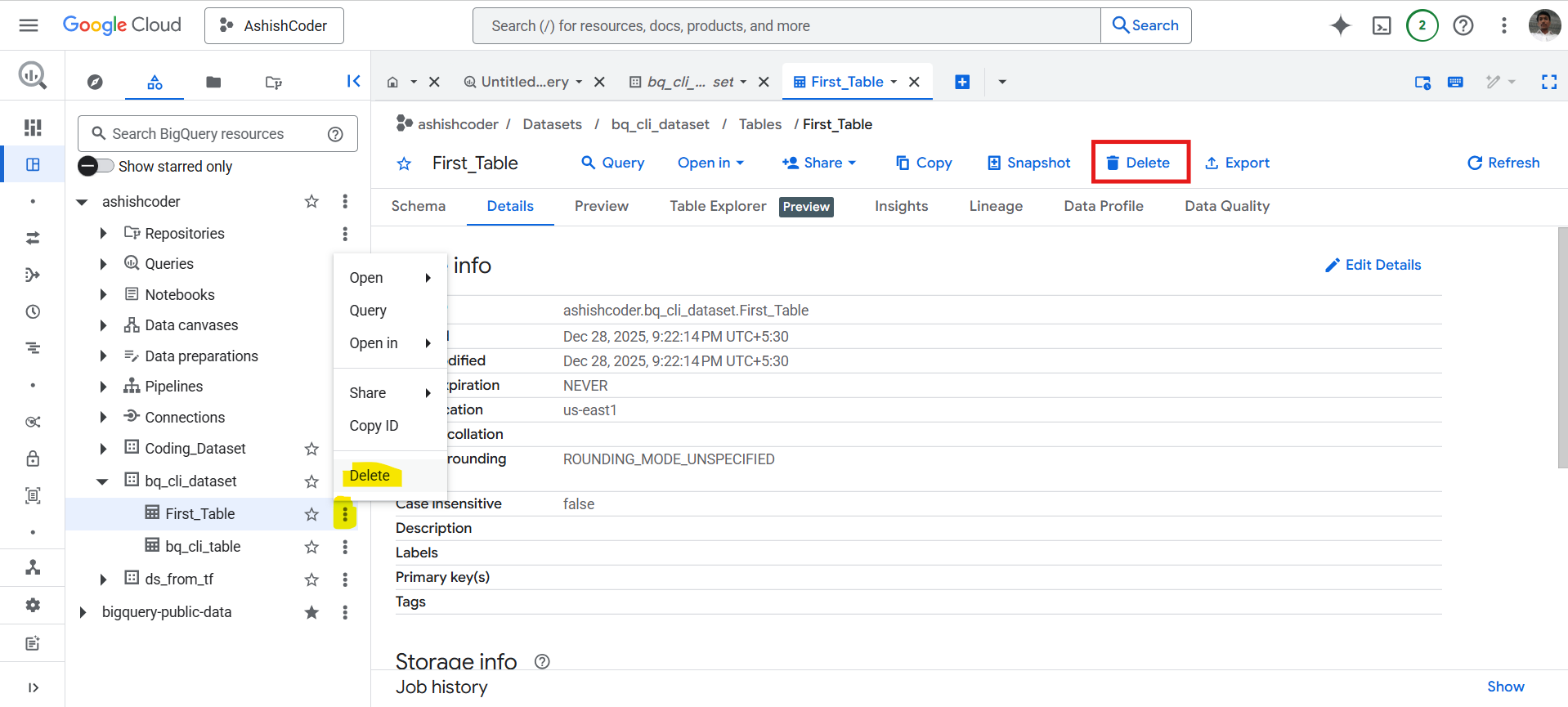
Step 4: In the confirmation pop-up, type delete and click Delete to confirm.
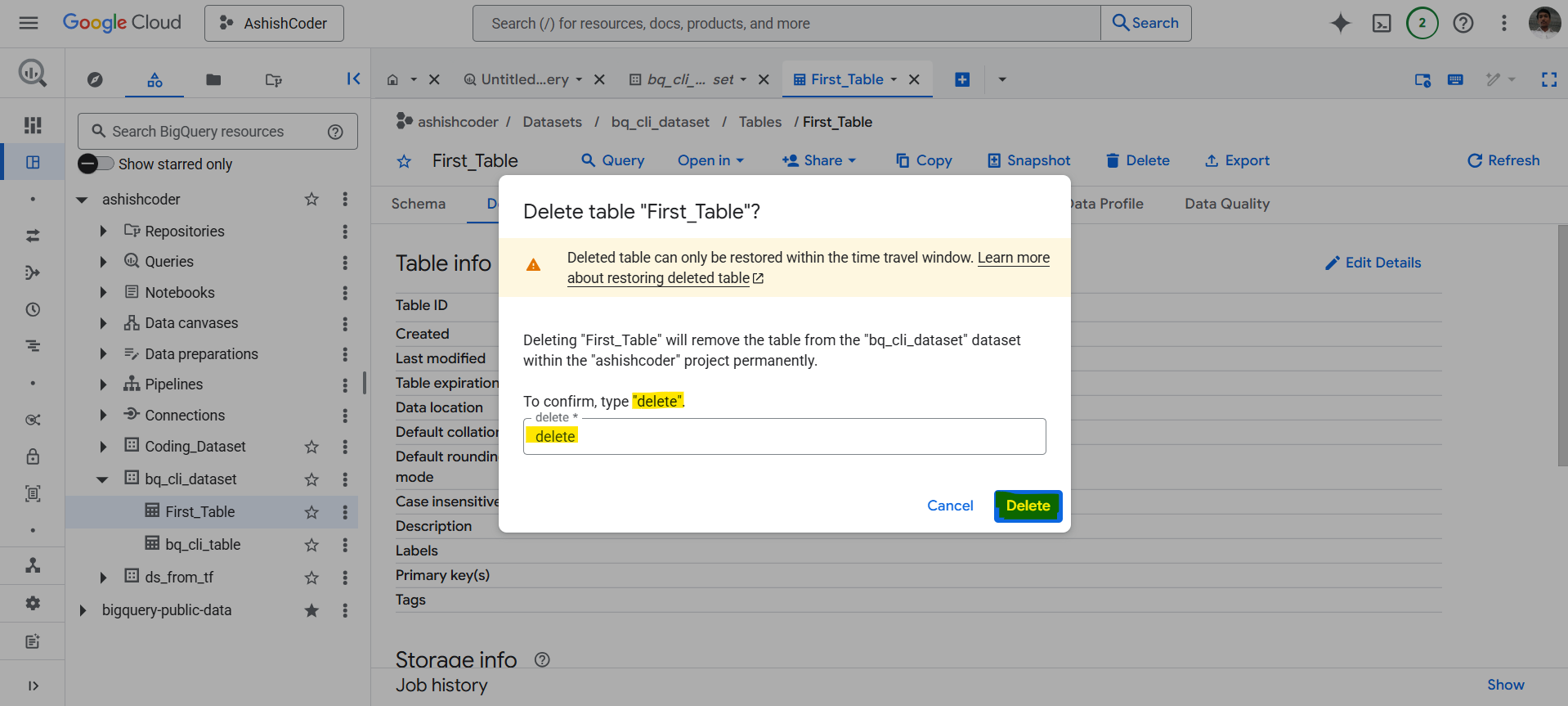
Note: Deleting a table permanently removes all data inside it. This action cannot be undone.
Method 2: Delete Table Using SQL
We can also delete a table in BigQuery by using the DROP TABLE statement.
SQL Syntax
DROP TABLE [IF EXISTS] [project_name.][dataset_name.]table_name;
Example: Let’s delete a table named ashishcoder.bq_cli_dataset.bq_table. In the BigQuery Query Editor, enter the following statement:
SQL
DROP TABLE `ashishcoder.bq_cli_dataset.bq_table`;
Note: The DROP TABLE command permanently deletes the table along with all its data. Use it carefully, especially in production environments.